

How to create notecards using Publisher & Word
1-800-982-FORM(3676)

URL for this page:

http://pcforms.com/create-notecards-using-publisher-word-i-80.html
Print your own.sm
Search:
Returning Customers | Government Use | Contact Us
E-Mail Address:
Password:  
Forgot your Password?
CheckoutCheckout
Live Chat Help

  • HOME

  • PRODUCTS
    • Postcards
      • Four-of-a-Kind (4up)
      • Utility (4up)
      • Jumbo (2up)
      • Single (1up)
      • Double Postcards (2up)
      • 8UP Postcards
    • Shipping Label Sheets
    • EDDM
    • Blank Print-Your-Own Labels™
      • White Permanent Uncoated
      • Color Permanent Uncoated
      • Fluorescent Permanent Uncoated
      • Poly Laser White
      • 11x17 White Permanent Uncoated
    • Inventory Tags
    • Door Hangers
      • DH3UP (die cut 'x')
      • DH3UP-MP (perfed 'x')
      • DH3UP-CIR (perfed circle)
      • DH3UP-POC (punched out circle)
      • Hangers with Tags
      • Hangers with Cards
      • Hangers with Postcards
      • DH2UPP-MP (perfed 'x')
      • DH2UPP-CIR (perfed circle)
    • Hangers
      • Hangers with Tags
      • Hangers with Cards
      • Hangers with Postcards
    • Inserts
    • Mailers w/Reply Card
    • Brochures
    • Note Cards, Greeting Cards
    • Bookmarks
    • BiFolds
    • Invoice Forms
    • Programs, Menus, Tent Cards
    • Tags
    • Survey Sets
    • Fundraising Sets
    • Membership / ID Cards
    • Chain of Custody Forms
    • W2's, 1099's
      • W2's
      • 1099MISC
      • 1099INT
    • Seasonal Products
    • Recycled Products

  • IDEAS & USES
    • By Industry
    • List of uses

  • TOOLS
    • Find your paper tool
    • Paper weight chart
    • How-To Center
    • Templates
      • Packing Slip Templates
      • Templates For Microsoft® Office
    • Request Samples
    • Find Your W2

  • CUST SERVICE
    • Suggestion Box
    • FAQ
    • Contact Us
    • Product Catalog
    • Shipping & Returns
    • Privacy Policy

  • NEWS
    • Newsletters
    • Blog
    • Press Releases

  • BLOG

  • SPECIALS
    • LS-6X4B2WOP
    • LS-UE
    • RENV9
    • RENV10
    • 4KU-H-CG
    • 4KU-H-WC
    • 4KU-H-SS
    • 4KU-H-RW
    • 4KU-H-KL
    • 4KU-H-CC
    • 4KU-H-BB
    • DH3UP-MP-C-SS
    • DH3UP-MP-C-RW
    • DH3UP-MP-C-KL
    • MC-Perf-GI
    • 4KS-30
    • 4KGI
    • LS-A5L

  • ABOUT US
    • History
    • Customer Testimonial
    • About Our Recycled Paper

How to create notecards using Publisher & Word

In Microsoft® Word, you must change both notecards.  In Microsoft® Publisher, the screen shows one notecard, but prints two mirror images.  (We recommend Microsoft® Publisher, if available.)

MICROSOFT(R) PUBLISHER

How to create a one-sided notecard sheet using Microsoft ® Publisher

  1. Visit this link to download a Burris Computer Forms template, for versions 2000/2003 or 2007.
  2. Insert graphic (by clicking Insert, Clip Art or Picture) or text, as desired in the bottom panels.  Adjust the position, as desired.  Go to File, then Print Preview to view before printing.  Verify that the document will print the same image two times on the sheet properly.  (Note:  Most printers will impose at least a 0.25 inch margin around the edge of the notecard.)
  3. Print the document.

How to create a two-sided notecard sheet using Microsoft ® Publisher

  1. Visit this link to download a Burris Computer Forms template, for versions 2000/2003 or 2007.
  2. Insert graphic (by clicking Insert, Clip Art or Picture) or text, as desired in the bottom panels of the notecard.  Adjust the position, as desired.  Go to File, then Print Preview to view before printing.  Verify that the document will print the same image two times on the sheet properly.  (Note:  Most printers will impose at least a 0.25 inch margin around the edge of the notecard.)
  3. To create the second side, go to Insert, then Page... .  Ensure that "after current page" and "Insert blank pages" are selected.
  4. Click in the notecard and insert greeting or other desired information.  
  5. Print the document, using the duplex setting on your printer, if available.  If not, print the first side, then feed the second blank side in the appropriate direction.
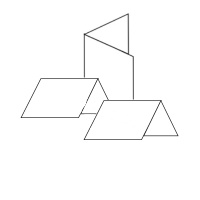
 

MICROSOFT(R) WORD

How to create a one-sided notecard sheet using Microsoft ® Word

  1. Visit this link to download a Burris Computer Forms template, for versions 2000/2003 or 2007.
  2. Insert graphic (by clicking Insert, Clip Art or Picture) or text, as desired in the bottom panels (front cover of the notecards.) 
  3. Print the document.

How to create a two-sided notecard sheet using Microsoft ® Word

  1. Visit this link to download a Burris Computer Forms template, for versions 2000/2003 or 2007.
  2. Insert graphic  (by clicking Insert, Clip Art or Picture) or text, as desired in the bottom panels (front cover of the notecards).
  3. Tab, to create another page.  Insert graphic (by clicking Insert, Clip Art or Picture) or text, as desired.  Repeat for bottom panels (inside of cards), if desired.
  4. Click in each notecard and insert greeting or information desired on both cards. 
  5. Print the document, using the duplex setting on your printer, if available.  If not, print the first side, then feed the second blank side in the appropriate direction.

How do I mail merge?

Tweet
blank note cards, printable greeting cards
Blank Note Cards | Blank Greeting Cards
FacebookTwitterYouTubeYou are here:
How to create notecards using Publisher & Word
SitemapBurris Computer Forms accepts all major brands of credit cards

Copyright © 2001-2012 Burris Computer Forms®
Burris Computer Forms is a registered trademark of Jerry Guzi & Company, a Virginia corporation